
Make the page yours
An included offline collection of gardens, animals, places and patterns. Start a blank canvas or import a photo or file.
Explore original coloring pages, find a favorite brush, and make something that feels like you. A coloring and painting studio designed for iPad, with iPhone support.
App Store release is being prepared.
Color an illustration or begin with a blank canvas. Pick your own colors, undo a detour, and come back to your work later.
An included offline collection of gardens, animals, places and patterns. Start a blank canvas or import a photo or file.
Painting, fill, texture, and editing tools with rendered previews. Search the brush library and keep favorites close.
Explore coordinated palettes, mix custom colors, and save your own combinations. Export an image when you’re ready to share.
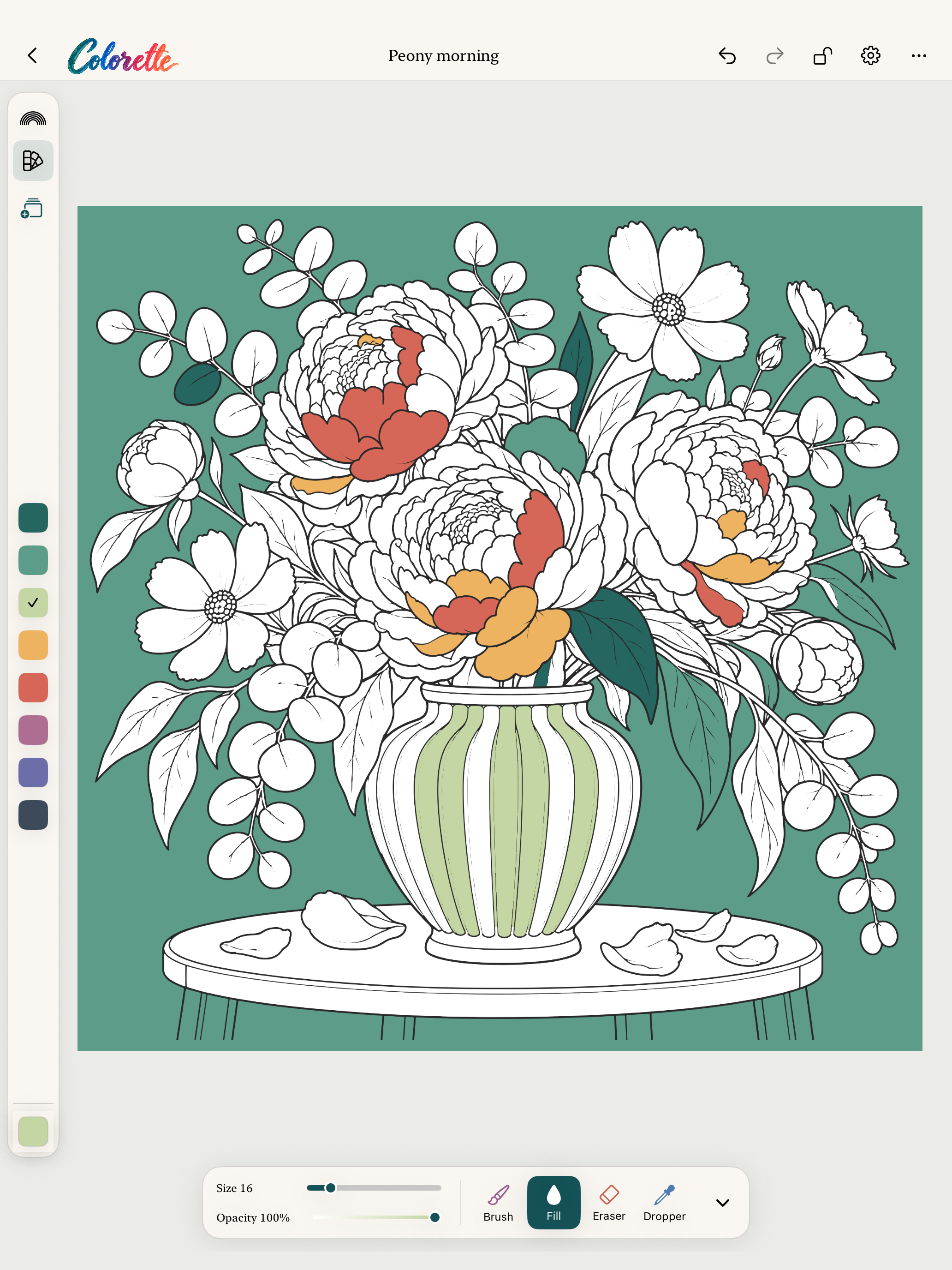
Actual app screens. Explore starter artwork, brushes and palettes. Select a screenshot to enlarge.
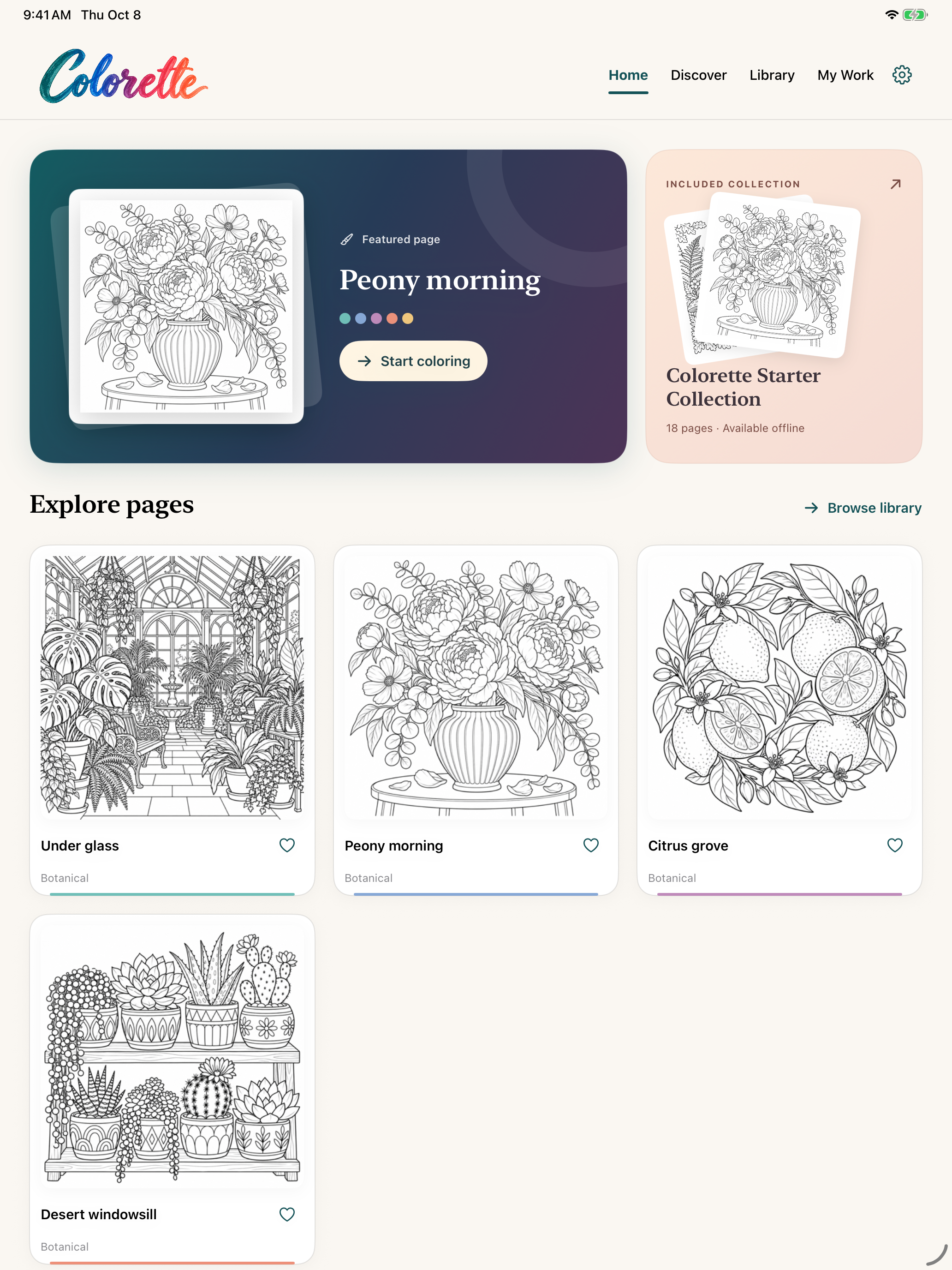
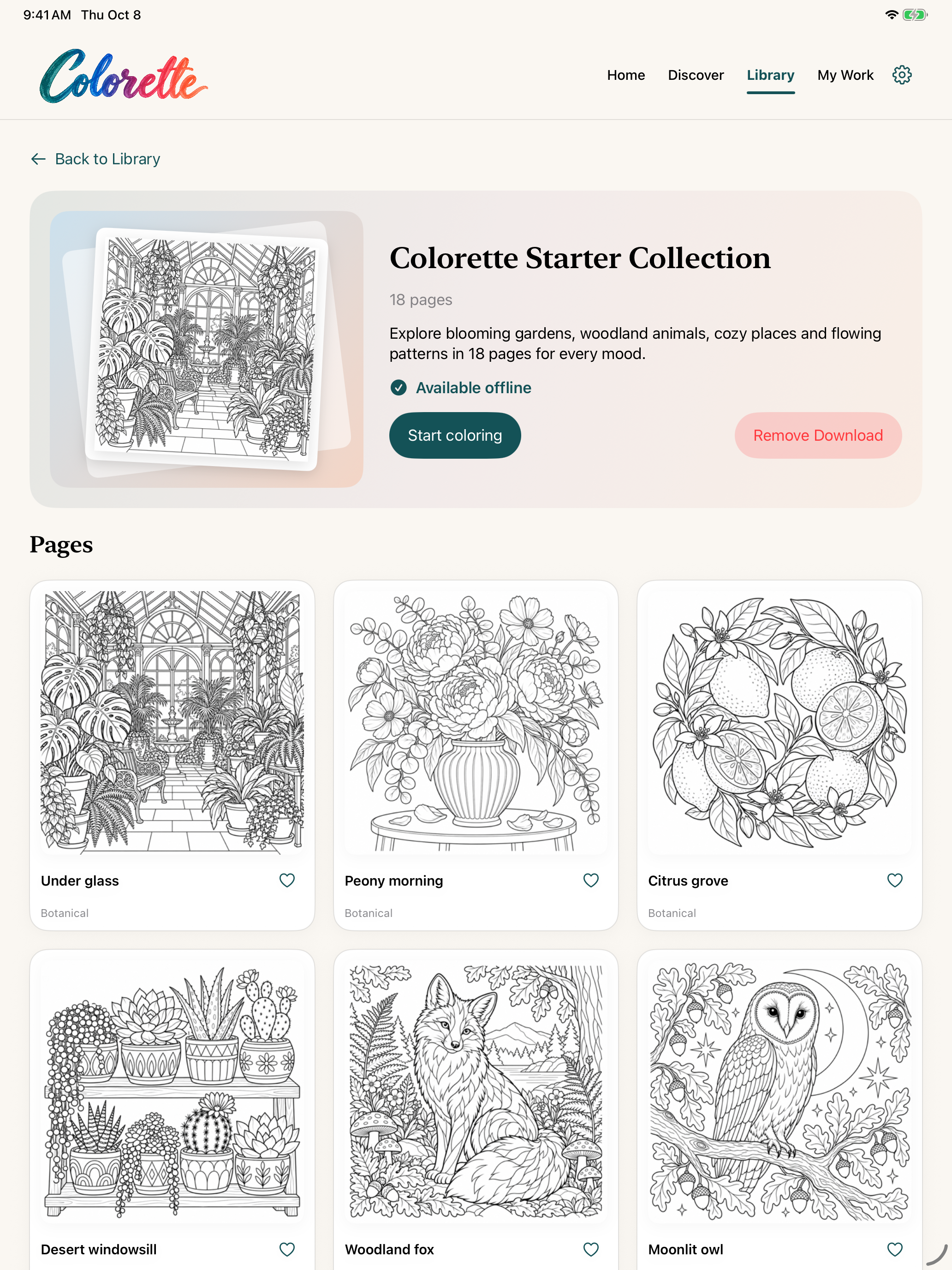
The app, creative tools, 18-page starter collection, imports, saving and exports are free. Optional artwork collections are separate permanent purchases, each with a free sample. There are no ads, subscriptions or consumables.
Share an image when you choose. Your artwork stays private unless you export it yourself.
Need a hand with Colorette? Email hello@mediocregs.com with your device model, iOS/iPadOS version, Colorette version, and a description of the problem. Attach artwork only if you want to share it.
Artwork is saved locally. Choose My Work to reopen a page. Export important images before deleting the app; reinstalling does not restore local artwork. If a save error appears, keep the app installed and contact support.
Pinch to zoom, twist two fingers to rotate, and use two fingers to pan. Zoom and rotation can be combined. Fit page resets the view upright. Tap Undo to reverse an action. The canvas controls let you adjust brush size, opacity and colors; Settings lets you place the menus at the left, bottom or right. The canvas menu includes Fit page, sharing, coloring mode, and Clear.
Open Settings → Apple Pencil for input, pressure, tilt, and gesture controls. Apple Pencil only ignores finger drawing; choose Finger & Pencil to draw with your finger again. Lift the Pencil and your hand before navigating with two fingers. Navigation stays paused during a Pencil stroke until all touches lift. Lock canvas position in Settings (or the top-right lock on iPad) prevents finger pan, zoom, and rotation without disabling Pencil drawing or the toolbar. System-disabled gestures remain disabled. Squeeze requires compatible Pencil Pro/iPad hardware and iPadOS 17.5 or later; the radial palette also opens from its editor button.
Open the current tool to browse or search brushes. Use the star or touch and hold a tool to add it to Favorites. Brushes and Textures have separate tabs, with rendered tool previews and stroke-shaped texture samples. Tap outside the panel to close it. Colors offers 22 themed palettes; choosing one loads eight coordinated swatches and remembers the palette for that artwork. Custom and recent colors are available. Use Add current color, then Save and name your own palette.
The slim slider above the swatches lightens or darkens the current color. Center returns to the original; choosing a new swatch resets it. Opacity is on the left rail or in Canvas settings. Canvas settings also provides size and opacity controls. Canvas menu → Eyedropper samples a color. Select regions toggles shapes in a teal selection; use Paint selected regions to paint those shapes, or Clear selection to resume normal coloring.
My Work supports photo/file import, folder filtering, and sorting. Touch and hold a work to rename it or assign a folder. Import opens Photos first and previews your selection. Choose Line art, Sketch, or Grayscale; adjust detail, crop, or rotation, then choose Start coloring. For busy photos, crop closer or try Sketch with lower detail. Closed outlines work best for automatic fill; use Freehand for open outlines. Imported grayscale detail depends on the source. Imported images are processed locally.
Export offers PNG or JPEG at 1024, 2048, or 4096 pixels, plus native printing. Sharing uses Apple’s share sheet, and printing uses Apple’s print interface. You choose the destination and manage exported copies there.
There are no ads or subscriptions. The app, tools and 18-page starter collection are free. Discover offers optional permanently purchased collections with free samples. Prices are shown in your App Store currency before purchase. Open Settings → Restore Purchases to restore collection ownership with the Apple Account used to buy them. Purchases do not restore local paintings deleted with the app.
Check your connection and try the download again. If a collection is already purchased, restore purchases in Settings; you do not need to buy it again. The starter works offline. Downloaded artwork referenced by saved paintings is retained when you remove a collection from Library.
Colorette has no ads, analytics SDK, tracking, account or cloud sync. Apple handles purchases. Secure downloads verify the app and collection ownership. Delete individual artwork in My Work. Uninstalling removes local app data; exports are managed at their chosen destinations.
Read the privacy policy for details about local artwork, purchases, secure downloads and support.